← Back to portfolio Version 2.0 · always evolving

Control Key

Who took which key, and when. All on a tablet.

01 / The story

From a paper notebook to version 2.0.

While you read, the TV alongsidejust below tells how it happened — from the first sketch to today. (App screens are in Portuguese.)

A silent animation telling the story of Control Key, from a paper notebook to version 2.0. The same content is in the text chapters.

  1. Ch. 1

    The problem

    It all started with a key cabinet tracked on paper. Who took it? Since when? Was it returned? Nobody knew for sure — and “has anyone seen the key to room 12?” was a daily question.

  2. Ch. 2

    The idea

    The idea was simple: a tablet mounted next to the cabinet. Each key becomes a number on screen; whoever takes one taps it, picks their own name and that’s it. We started with 40 keys — soon it was 50.

  3. Ch. 3

    First draft

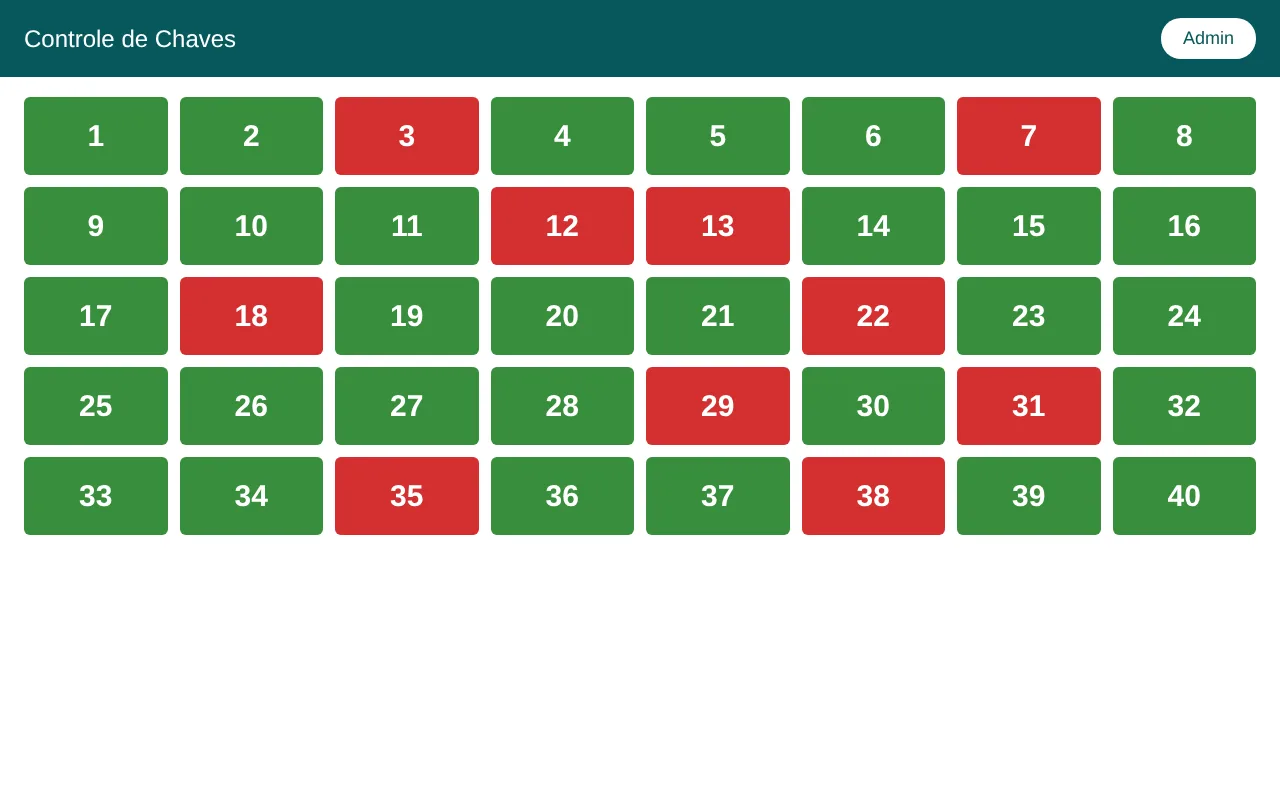
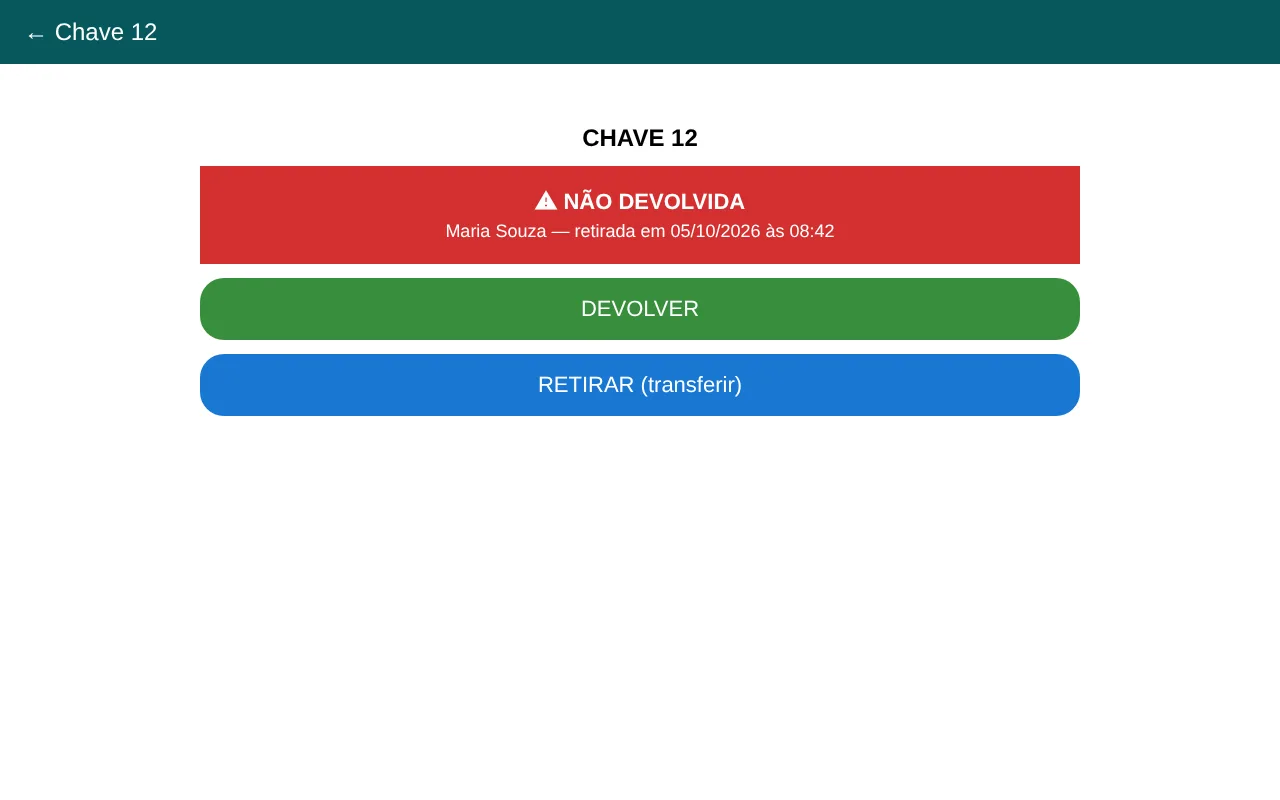
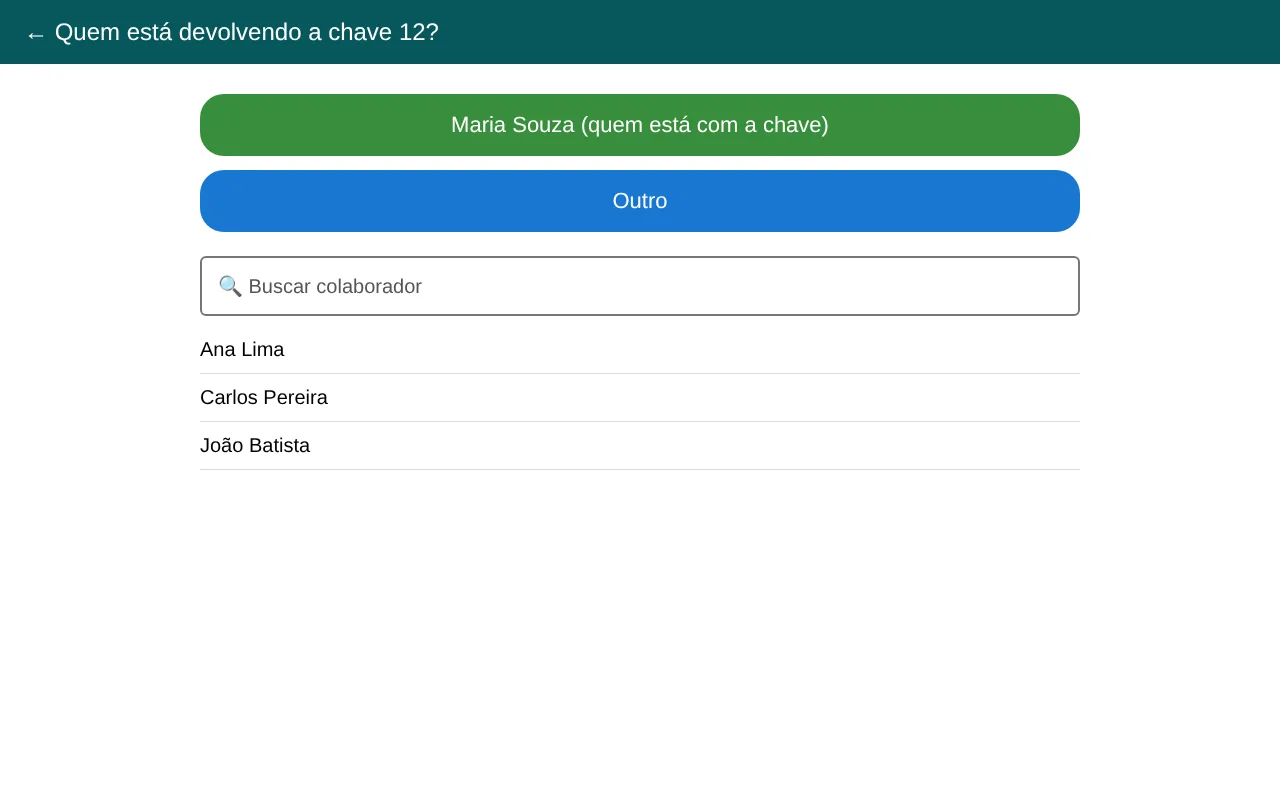
    The first draft went straight to the point: green means the key is in the cabinet, red means it’s out. Tap a free key: category → name → confirmation. Tap a key that’s out: return it or take it over (transfer) — and if someone forgot to return it, that gets logged.

    First draft: grid of numbered keys, green in the cabinet and red when out Key 12 flagged as not returned, with Return and Take (transfer) buttons Screen asking who is returning key 12

    Screens recreated from the original code (in Portuguese).

  4. Ch. 4

    v1.0 is born

    With a name, a splash screen and an Admin area (categories, team members and Excel export), v1.0 was born. “Employee” became “Team member”. And the real test happened on an actual tablet and phone.

  5. Ch. 5

    Behind the scenes: what went wrong and how we fixed it

    Not everything worked the first time — and that’s okay. Data that wouldn’t save, a password that wouldn’t confirm with Enter, an adjustment for the tablet’s Android 13, and even the tablet’s security system blocking the install (IT approved it). Every bug became a lesson.

  6. Ch. 6

    Ideas we kept and ideas we cut

    • Spare key: every number got a main and a spare — the square split “corner to corner”.
    • Neon halo around the key and keychain color, to find it faster.
    • Banner listing keys on the idle screen → became something better: who has which key, and since when.
    • Color categories with authorization → became the keychain color (and, in 2.0, the department color).
  7. Ch. 7

    v1.2: clearer in the rush

    v1.2 brought a new home screen (who has each key and since when), closed/open locks on the grid, confirmation with the key name, date and time, the forgotten-return notice and an Admin area with its own password and automatic backups.

  8. Ch. 8

    The first sale asks for more

    The first sale was to the front desk of an industrial plant, with lots of traffic. Listening to the people who use it every day changed everything: color-coded departments, guards and shift changes, voice entry, undo, organized visitors, cabinet labels and a log of every change.

  9. Ch. 9

    Today: v2.0, always evolving

    Today Control Key is on version 2.0 — and it keeps evolving with every conversation with the people who use it. Right below, everything it does now. 👇

  • 2 minto set up
  • 200keys per tablet
  • 100%offline day to day
  • 10keys for free
02 / What’s new in 2.0

Built so the front desk never stalls.

Fewer taps for whoever hands out the keys. More control for whoever runs the company.

Home screen

Who has which key, at a glance.

The idle screen shows only the keys that are out: who took them, from which department and how long ago. Search by person, number or place — even by voice — and filter by department in one tap.

  • Keys-out counter always on screen
  • Visitors clearly tagged
  • Guard on duty and next shift change at the top
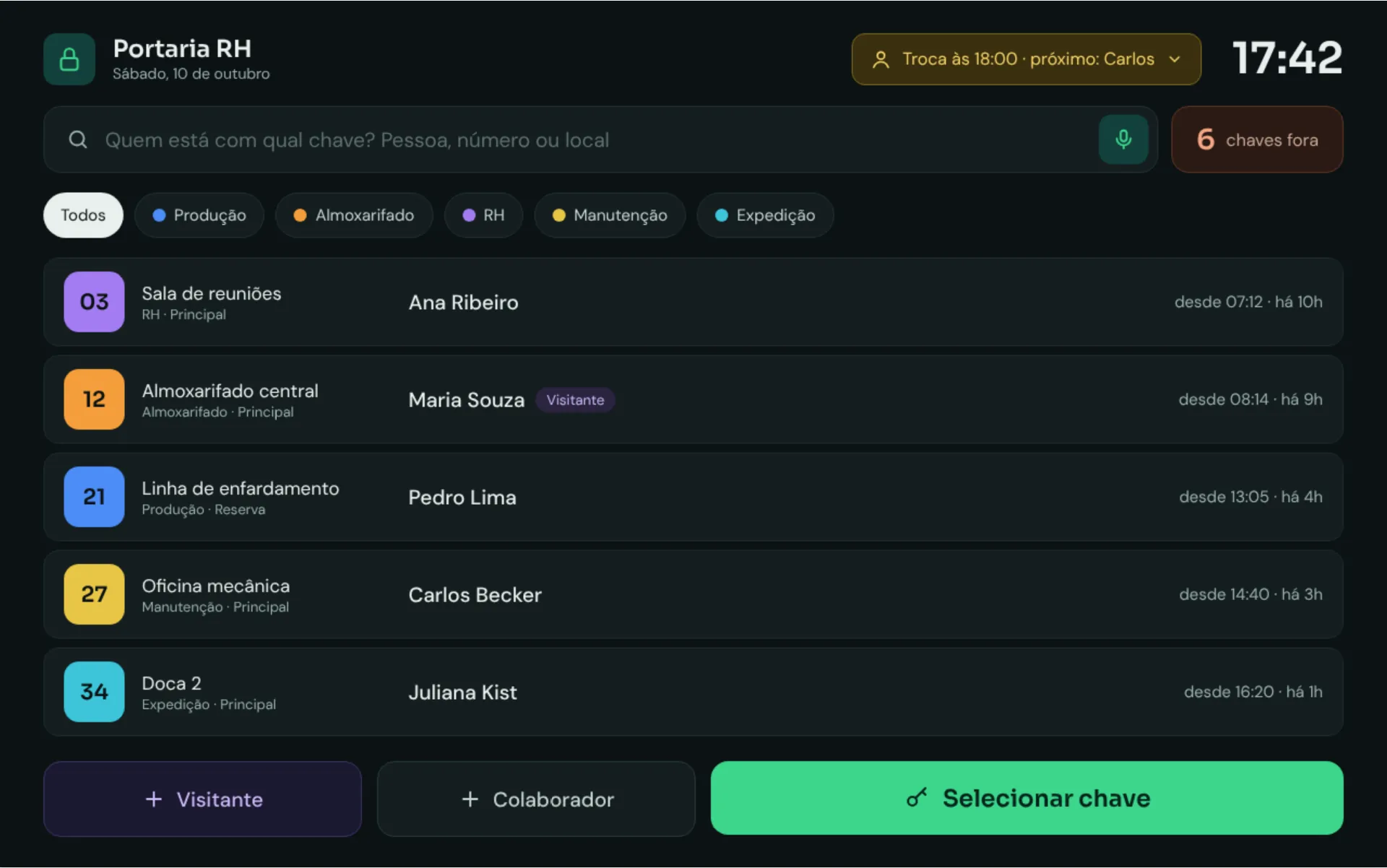
Home screen with keys out, department filters and Visitor, Employee and Select key buttons
Departments and colors

Every department has its color. The whole cabinet in one grid.

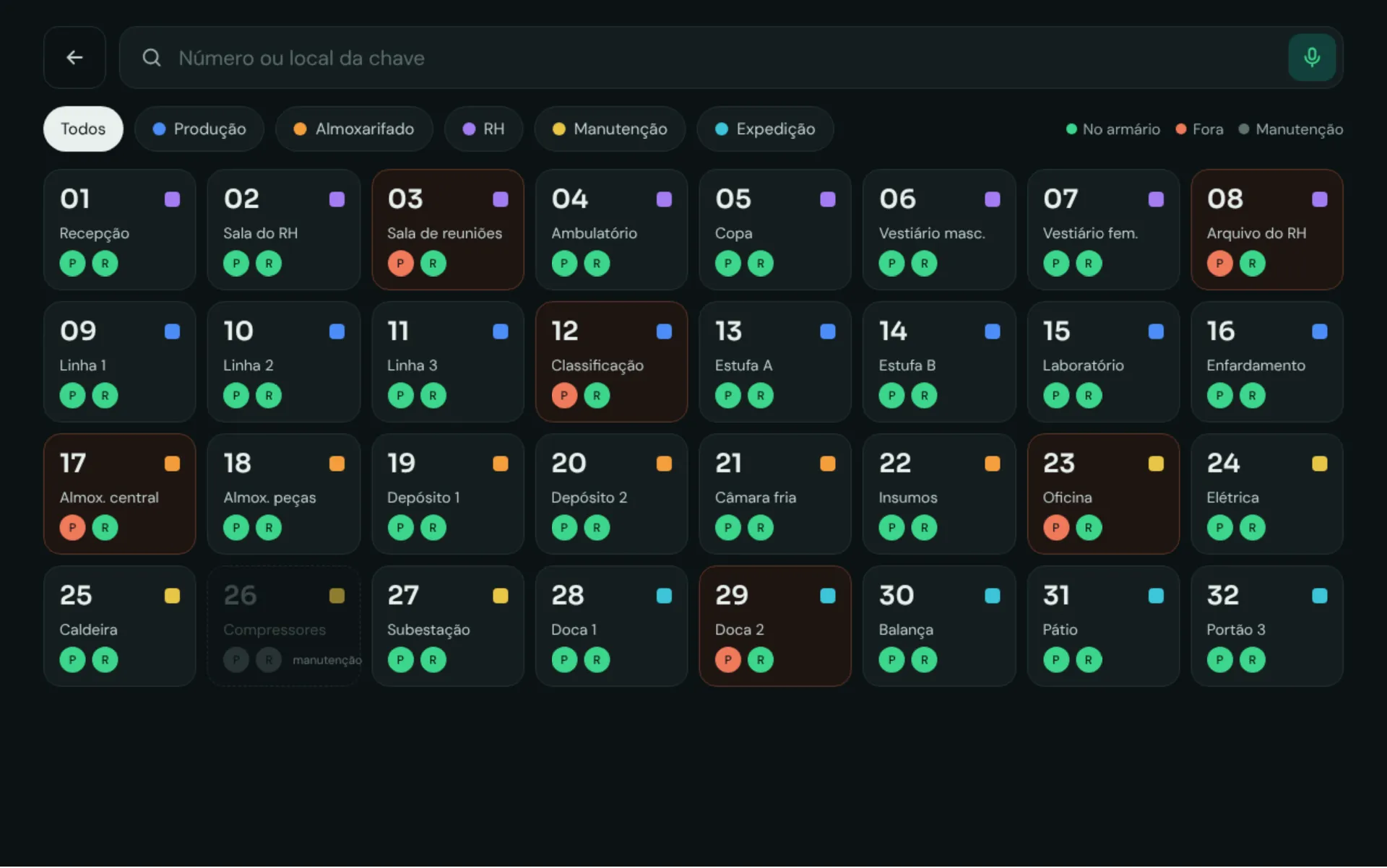
Production, HR, Maintenance, Shipping… each department gets a color, and the grid instantly shows what’s in the cabinet, what’s out and what’s under maintenance — with hooks for main and spare keys.

  • Up to 200 keys per tablet
  • Color-blind mode: each department also gets a shape
Grid of color-coded keys with main and spare hooks and status legend
Voice entry

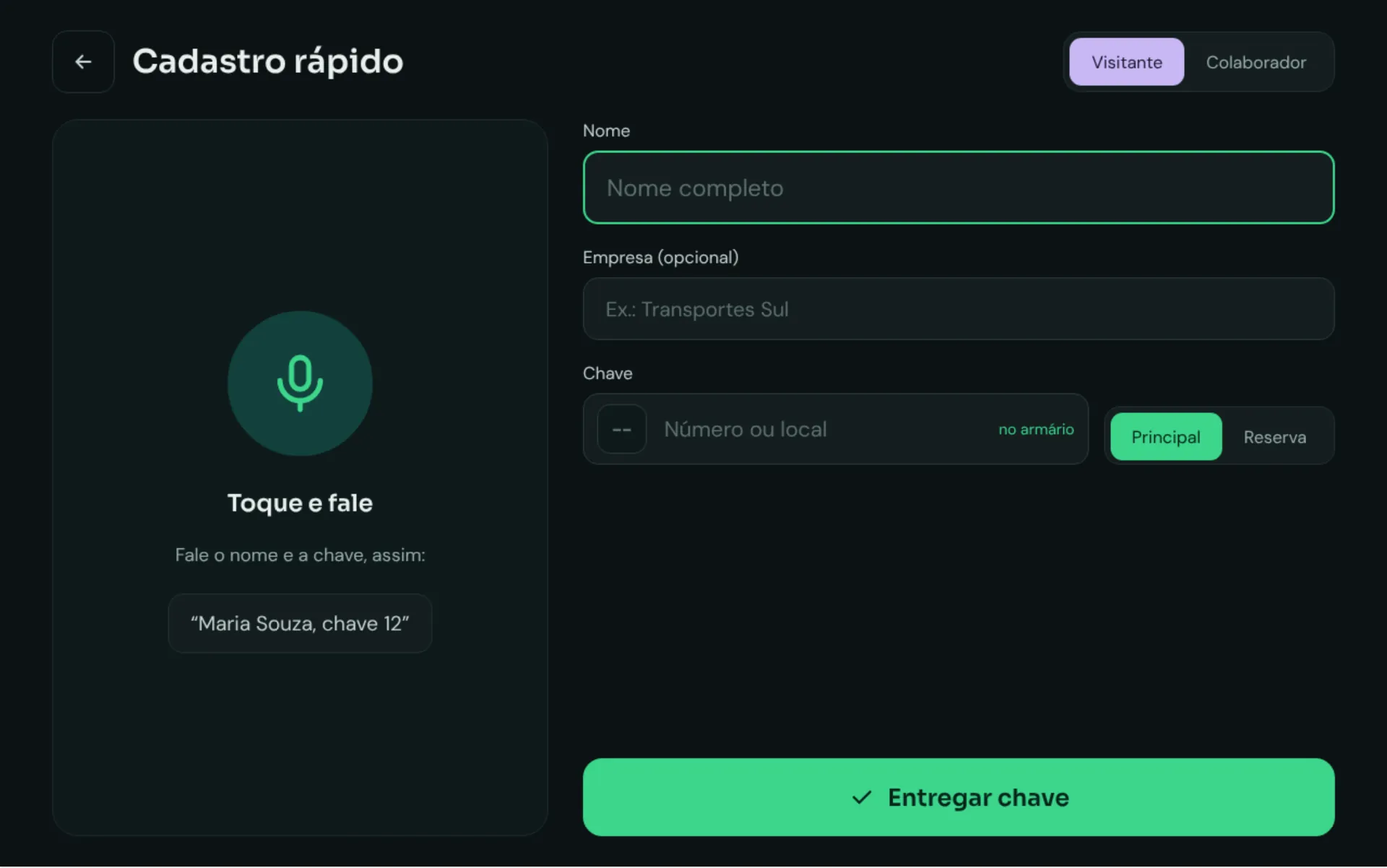
“Maria Souza, key 12.” Done.

A visitor just arrived? Tap the mic and say the name and the key. Control Key fills in the form and the key goes out in seconds — no typing in a rush.

Quick sign-up screen with a Tap and speak button and name, company and key fields
Confirmation + undo

Wrong tap? Undo it right away.

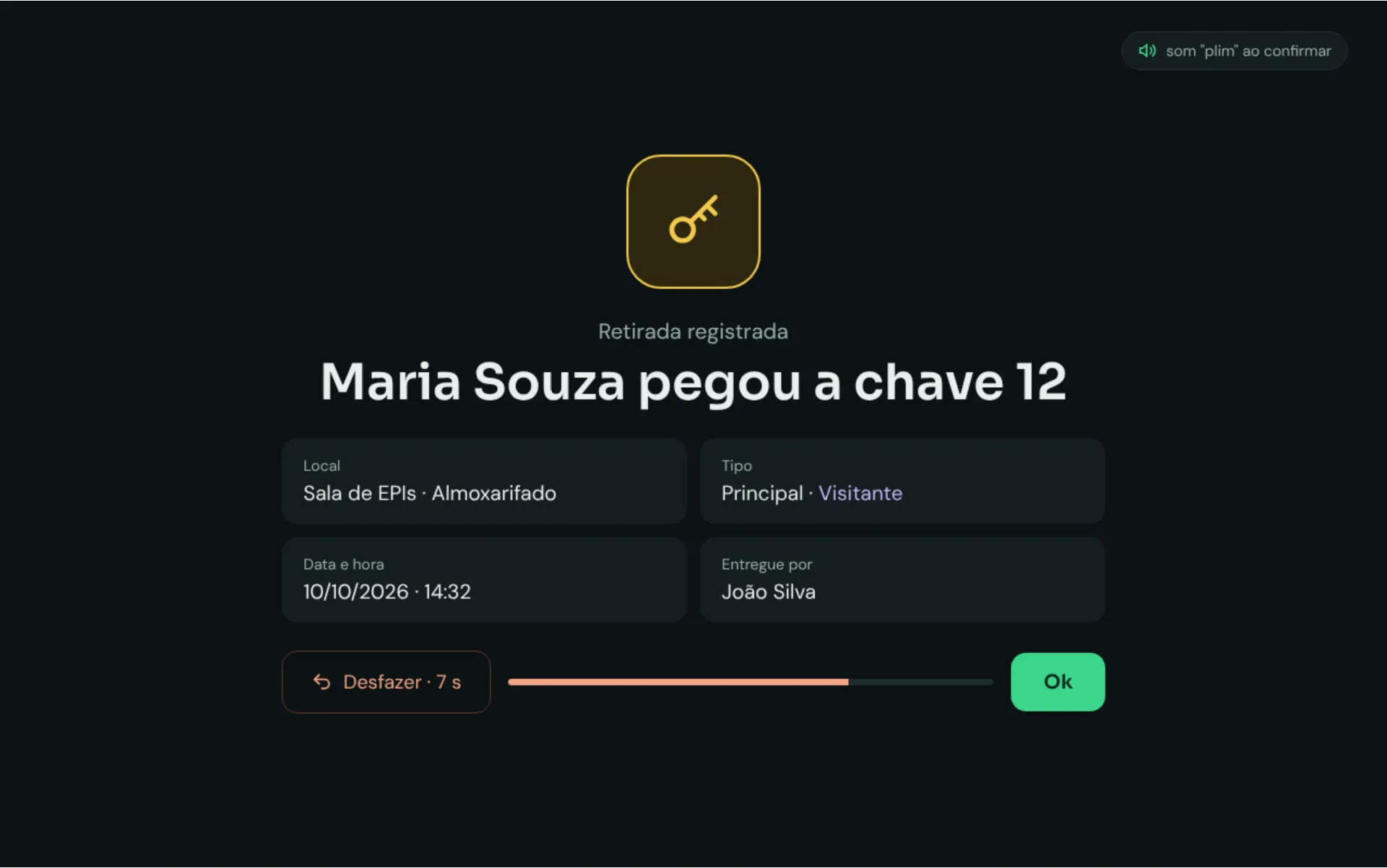
Every pickup confirms with a sound and shows place, type, date, time and who handed it out. If you tapped the wrong thing, an “Undo” button stays on screen for a few seconds — and it all goes into the log.

Pickup confirmation with an Undo button counting down
Guards and shift changes

Shift changes remind themselves.

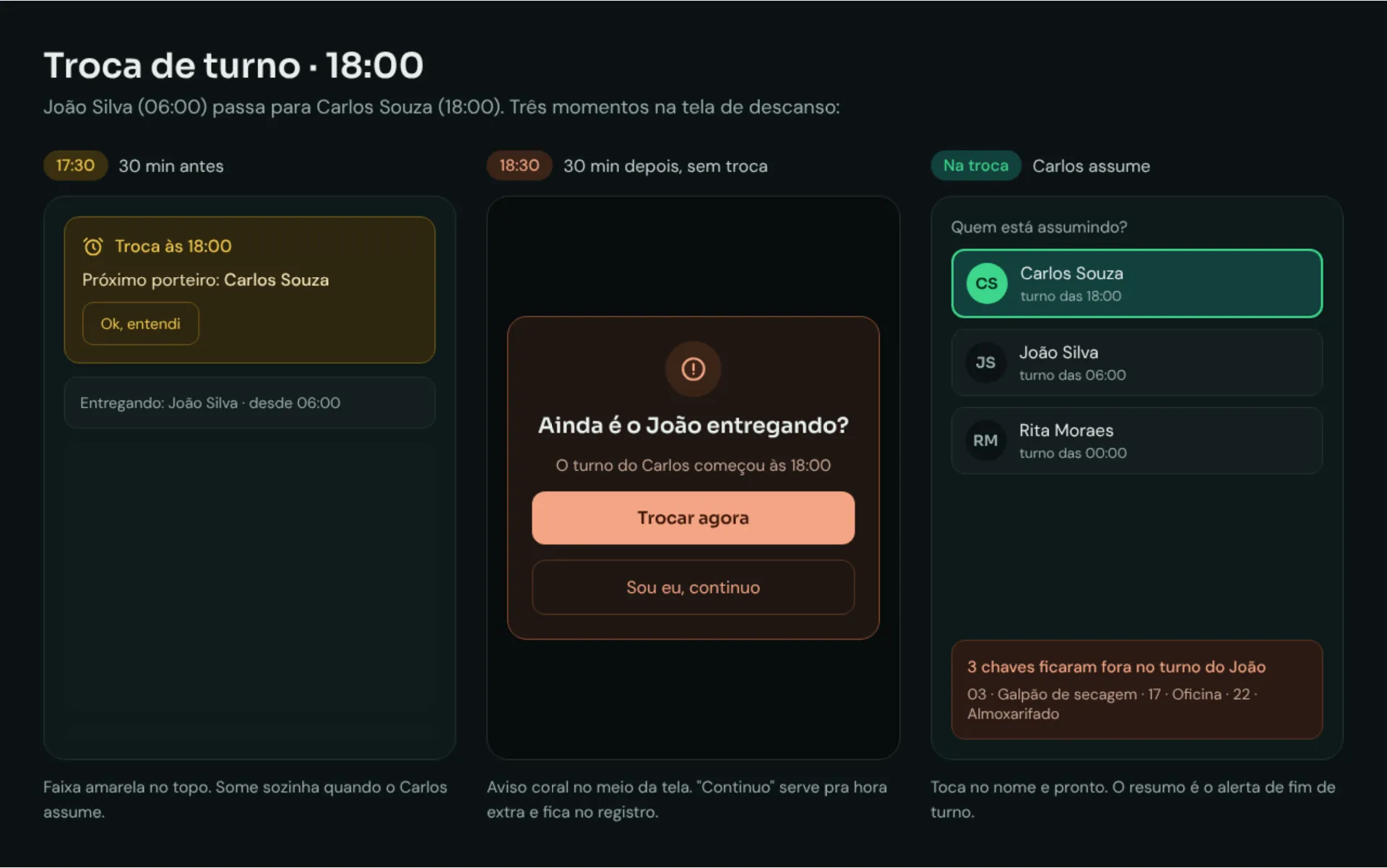
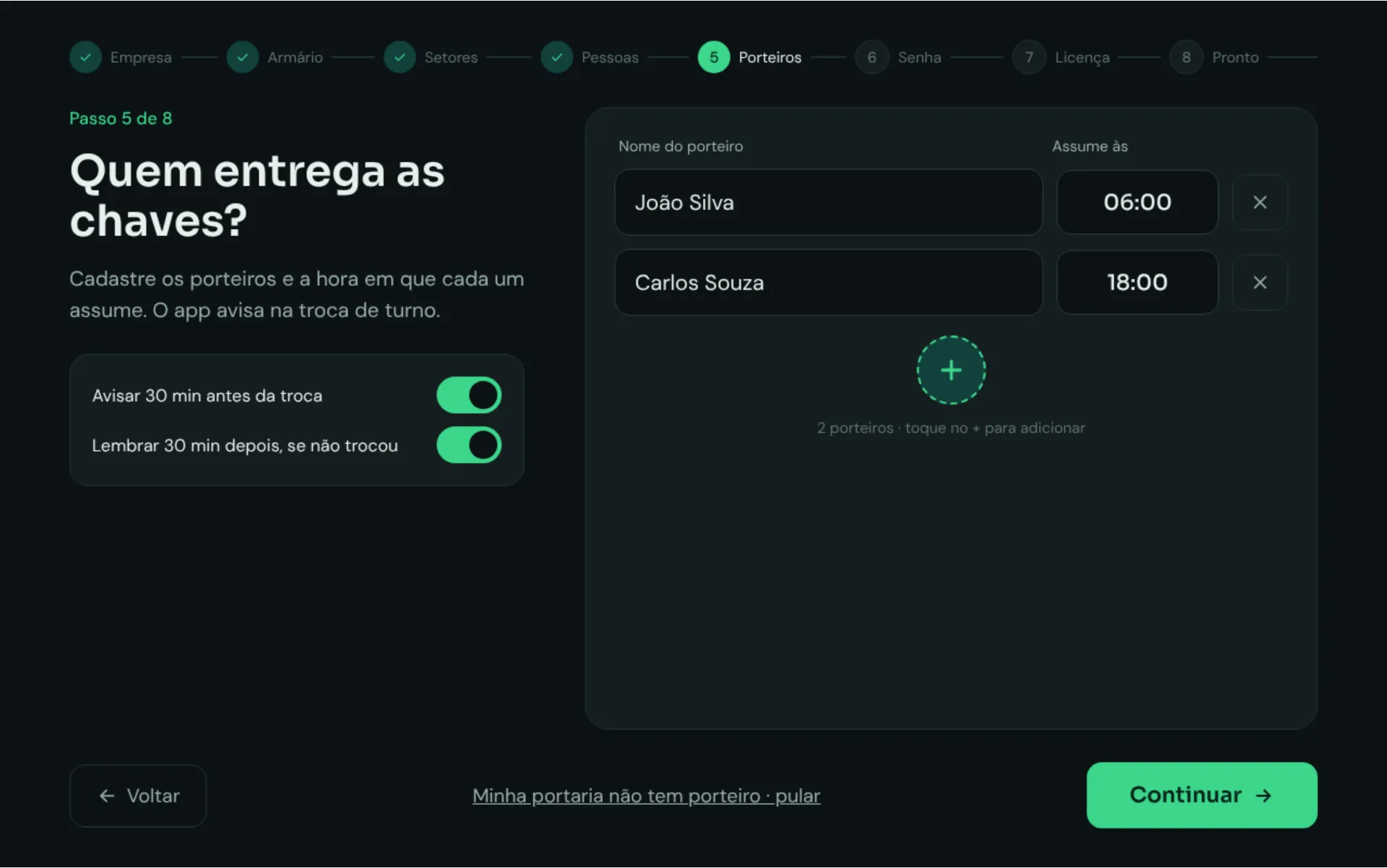
Add your guards and when each shift starts. The app warns before the change, asks afterwards if nobody switched, and at handover shows the keys still out from the previous shift.

  • Subtle banner 30 min before
  • Pop-up 30 min after, if nobody switched
  • “It’s me, I’m staying” logs the overtime
The three moments of a shift change: reminder before, alert after and choosing who takes over
Admin

Every change, with a name and a time.

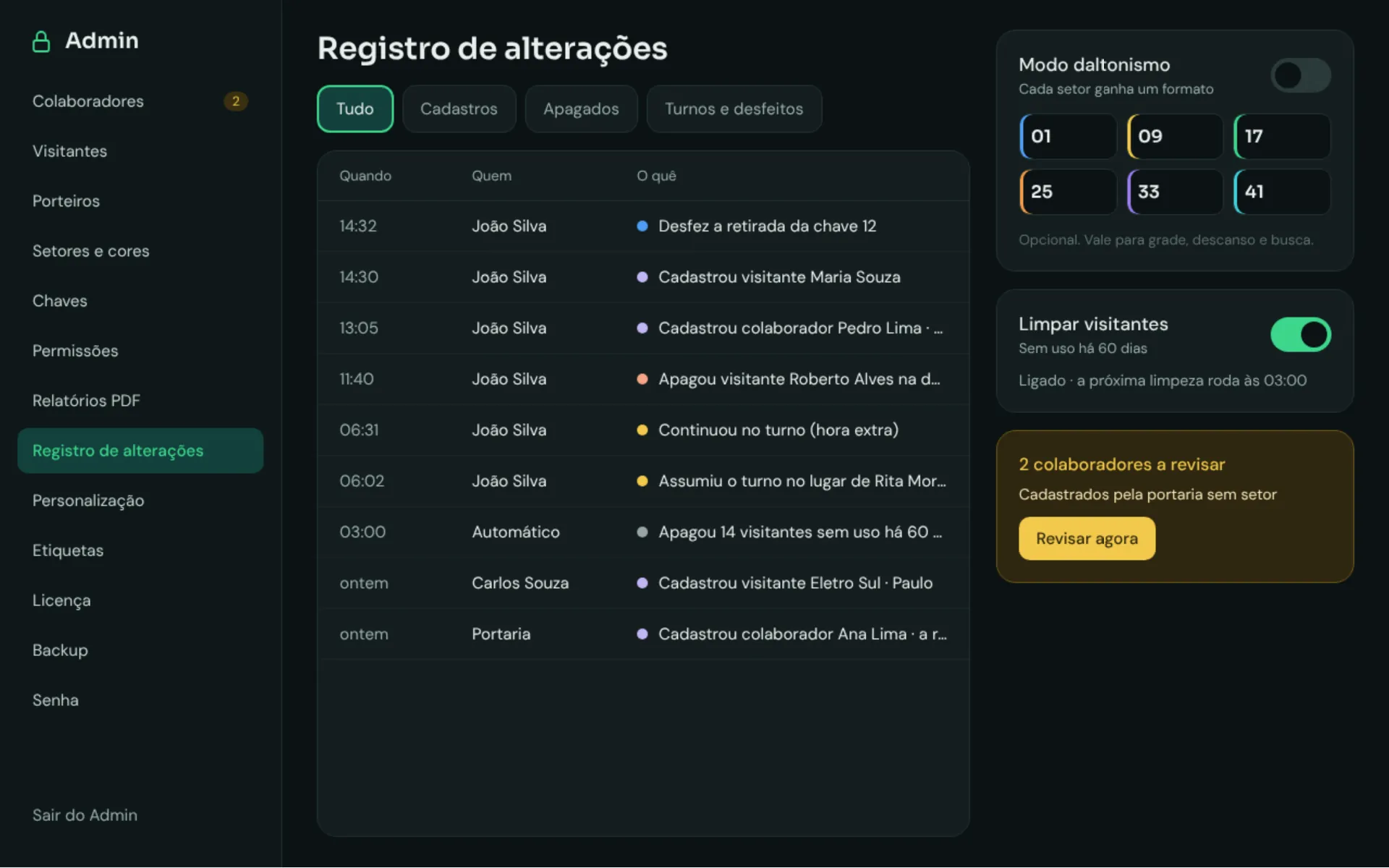
The change log shows who added, deleted, undid or took over a shift. Admin also clears unused visitors automatically and flags people the front desk added that need review.

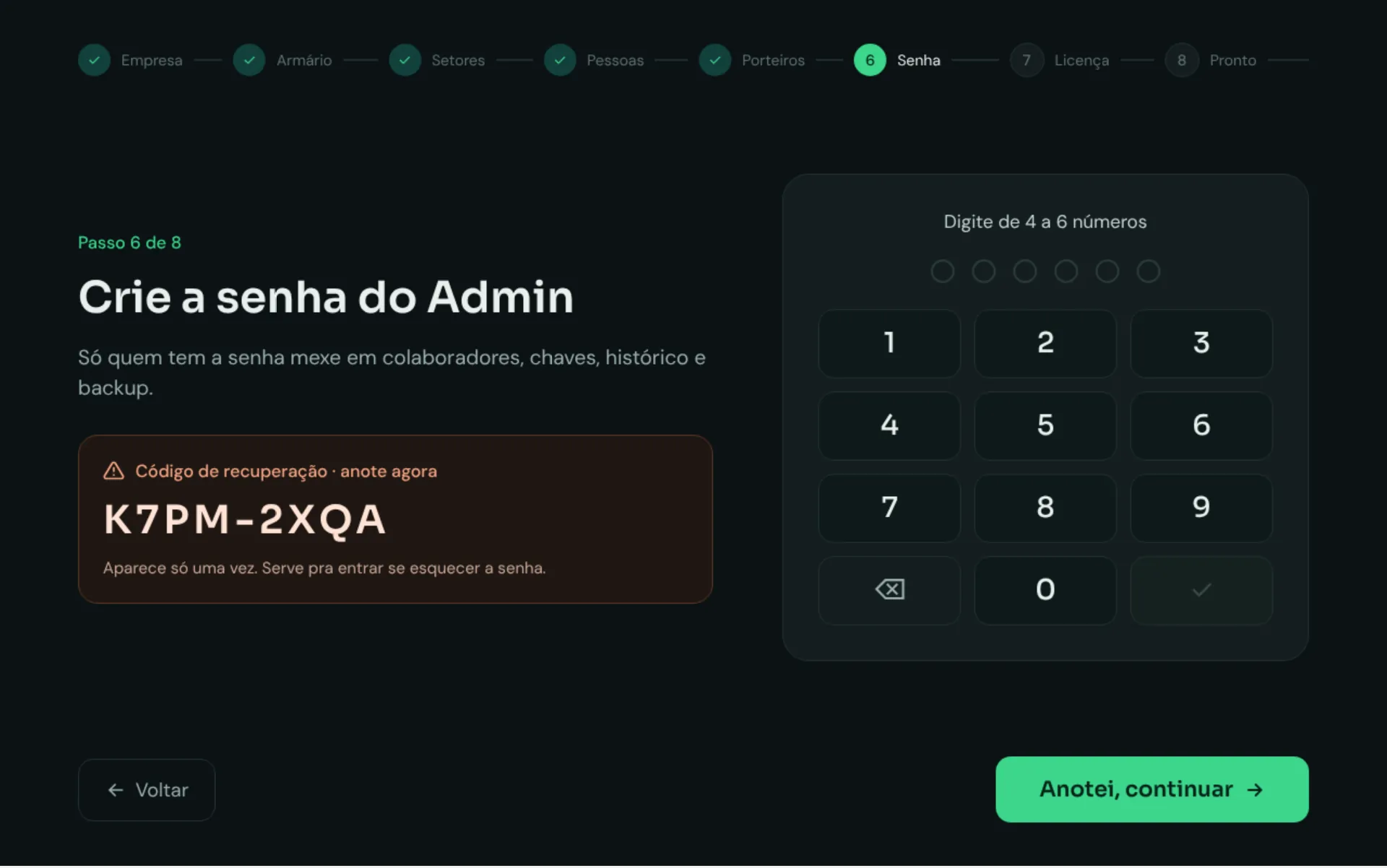
  • Password-protected, with a recovery code
  • PDF reports, CSV and backups
Admin screen with the change log, color-blind mode and visitor cleanup
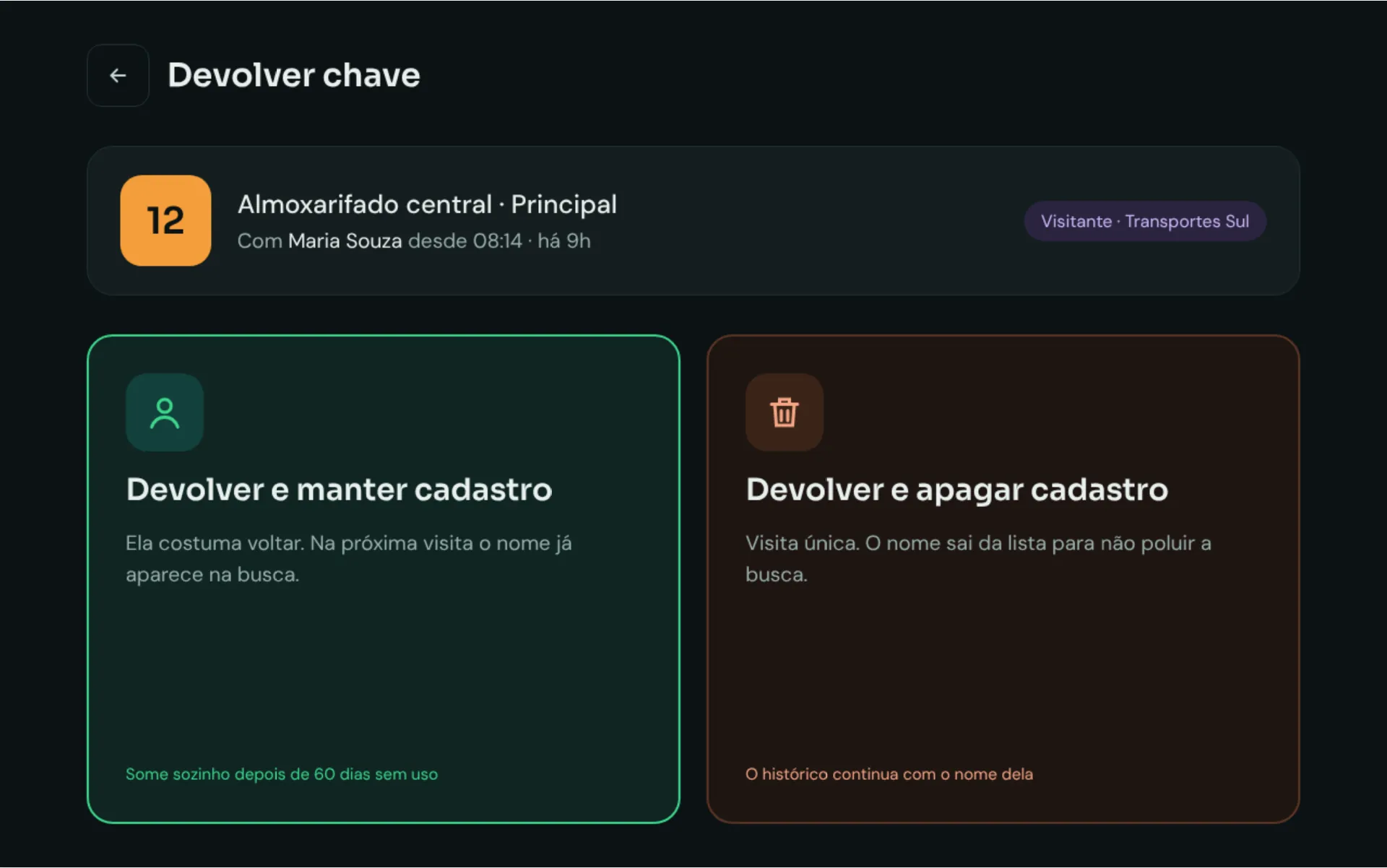
Returning a visitor’s key with the option to keep or delete their record

Tidy visitor lists

On return, keep the record of regulars or delete one-time visitors. Anyone unused for 60 days is removed automatically — the history stays.

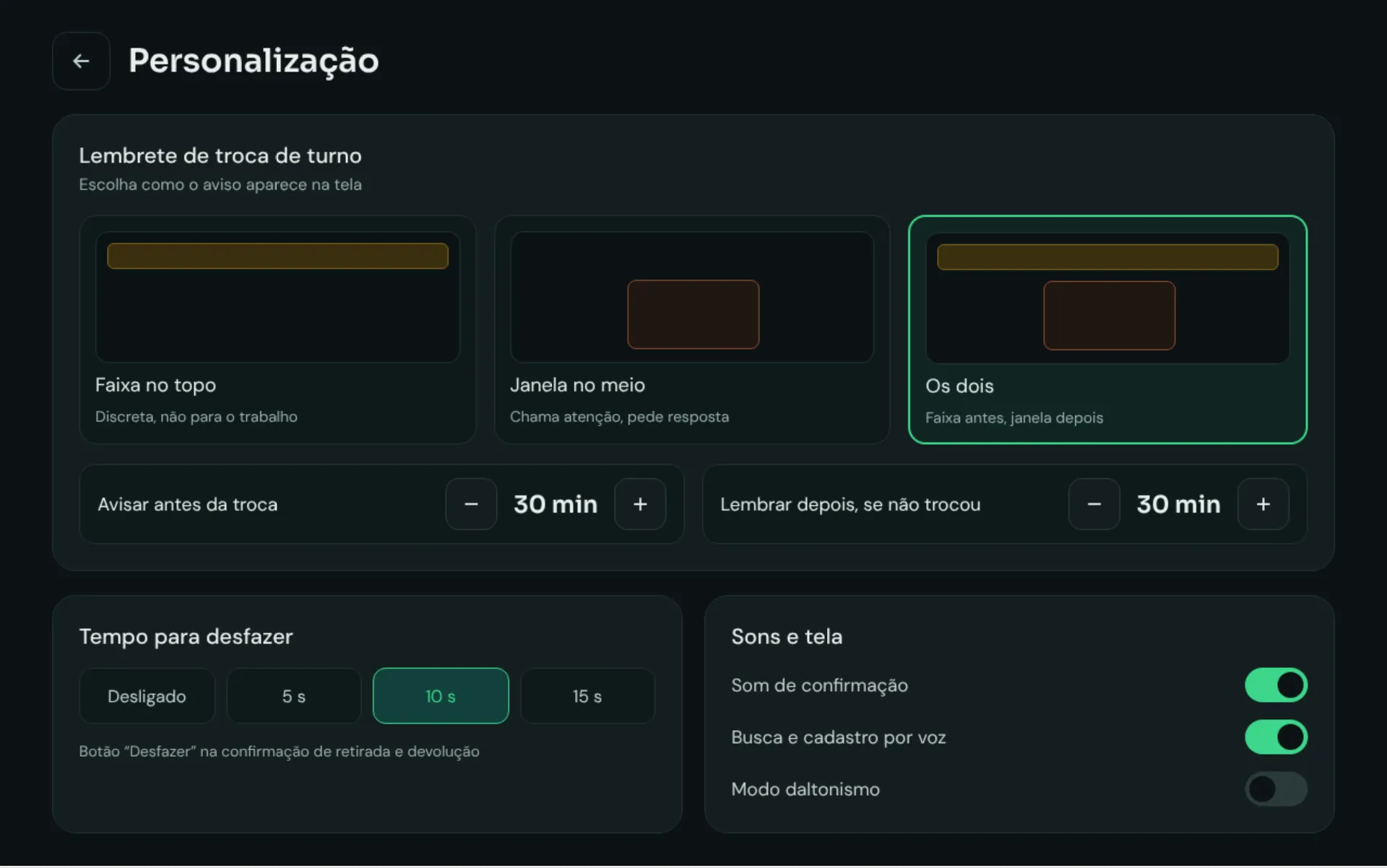
Settings for shift reminders, undo time, sounds and voice

Your front desk, your way

Choose how shift reminders appear, how long “Undo” stays on screen, and turn sound, voice and color-blind mode on or off.

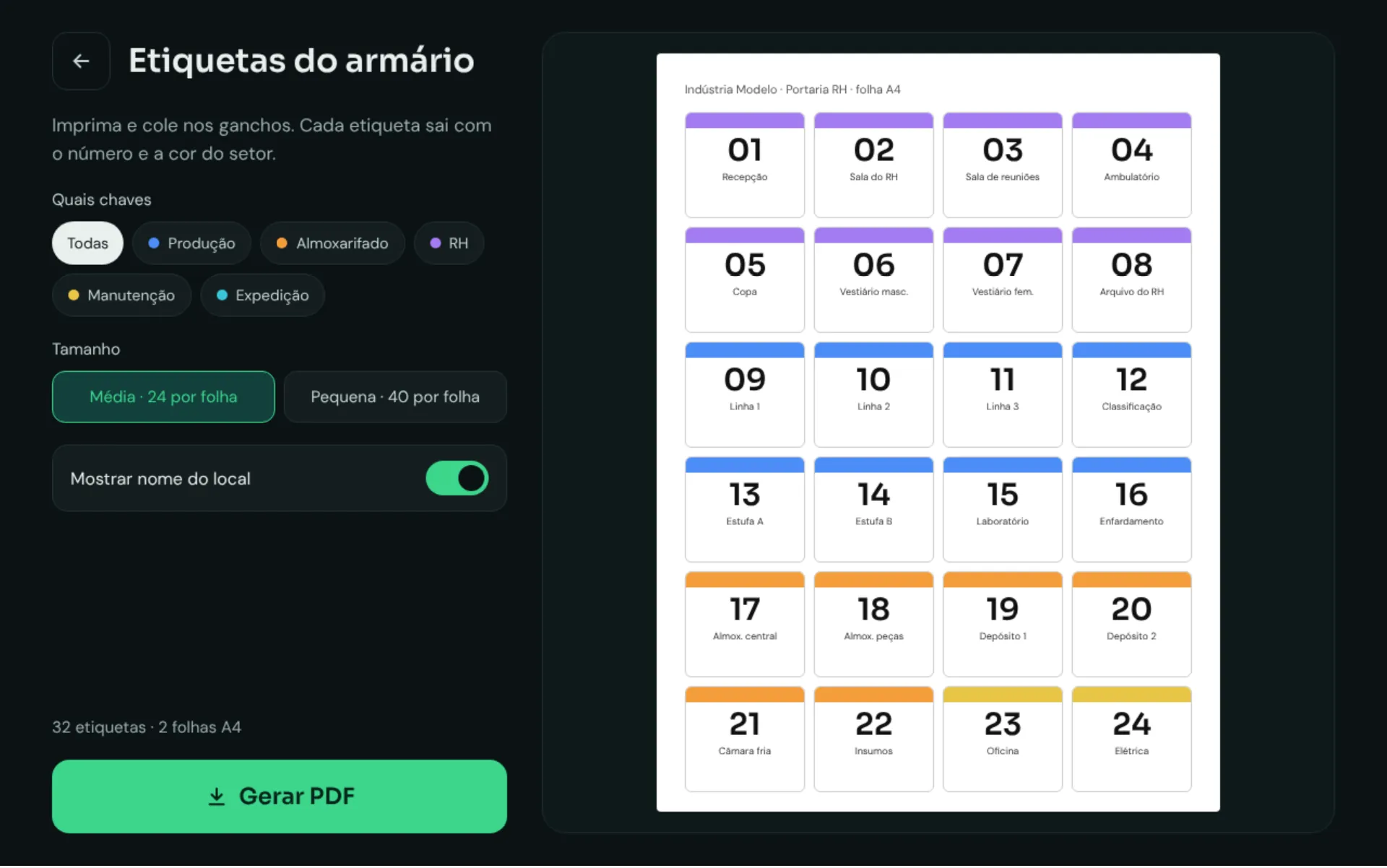
Cabinet label generator on an A4 sheet with number and department color

Cabinet labels

Generate a PDF and print on A4: every label shows the number, place name and department color. Just stick them on the hooks.

03 / Setup

From zero to a working cabinet in 2 minutes.

The first time, Control Key asks only what matters, step by step. You can change everything later in Admin.

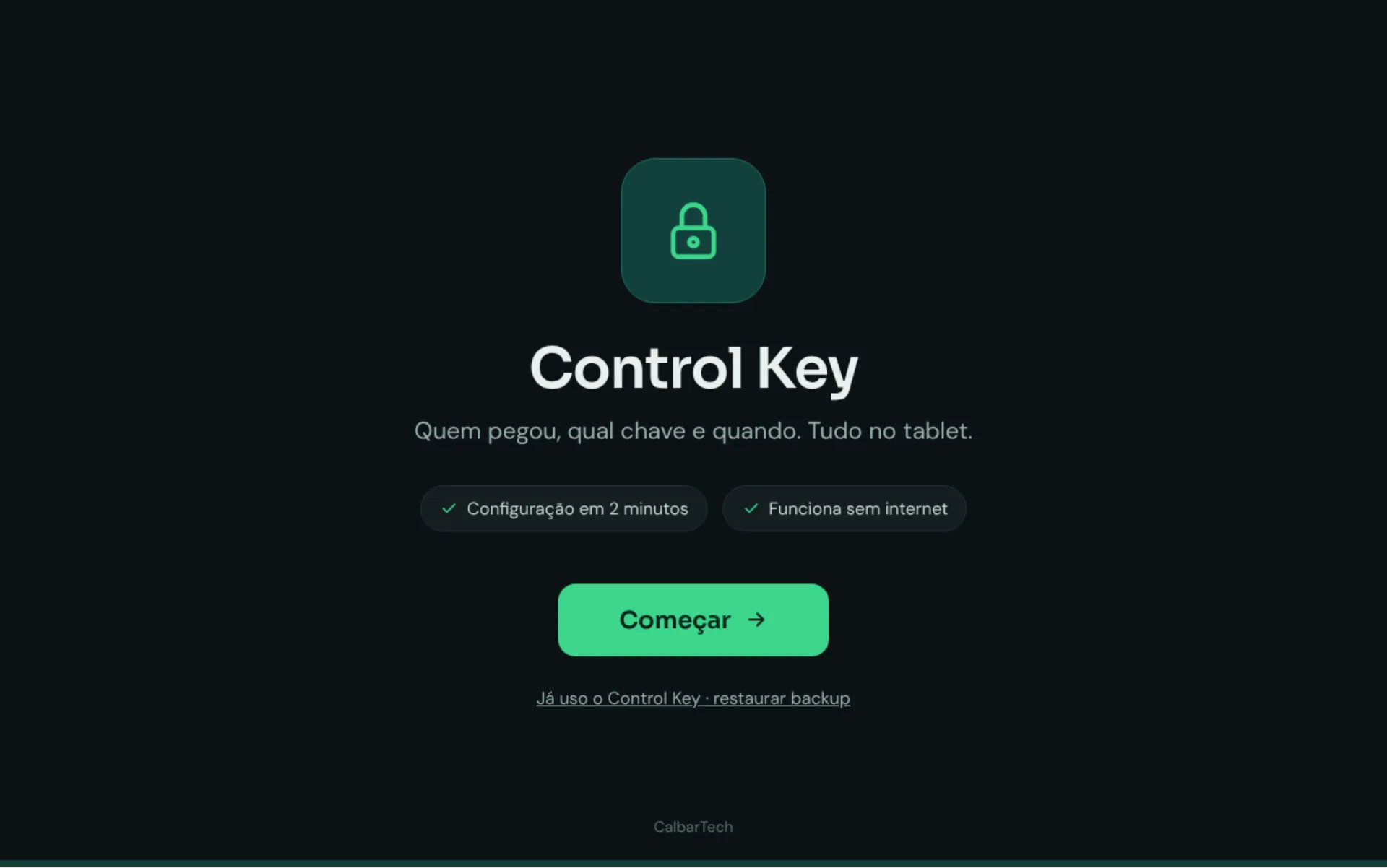
Control Key welcome screen
00Welcome — or restore a backup
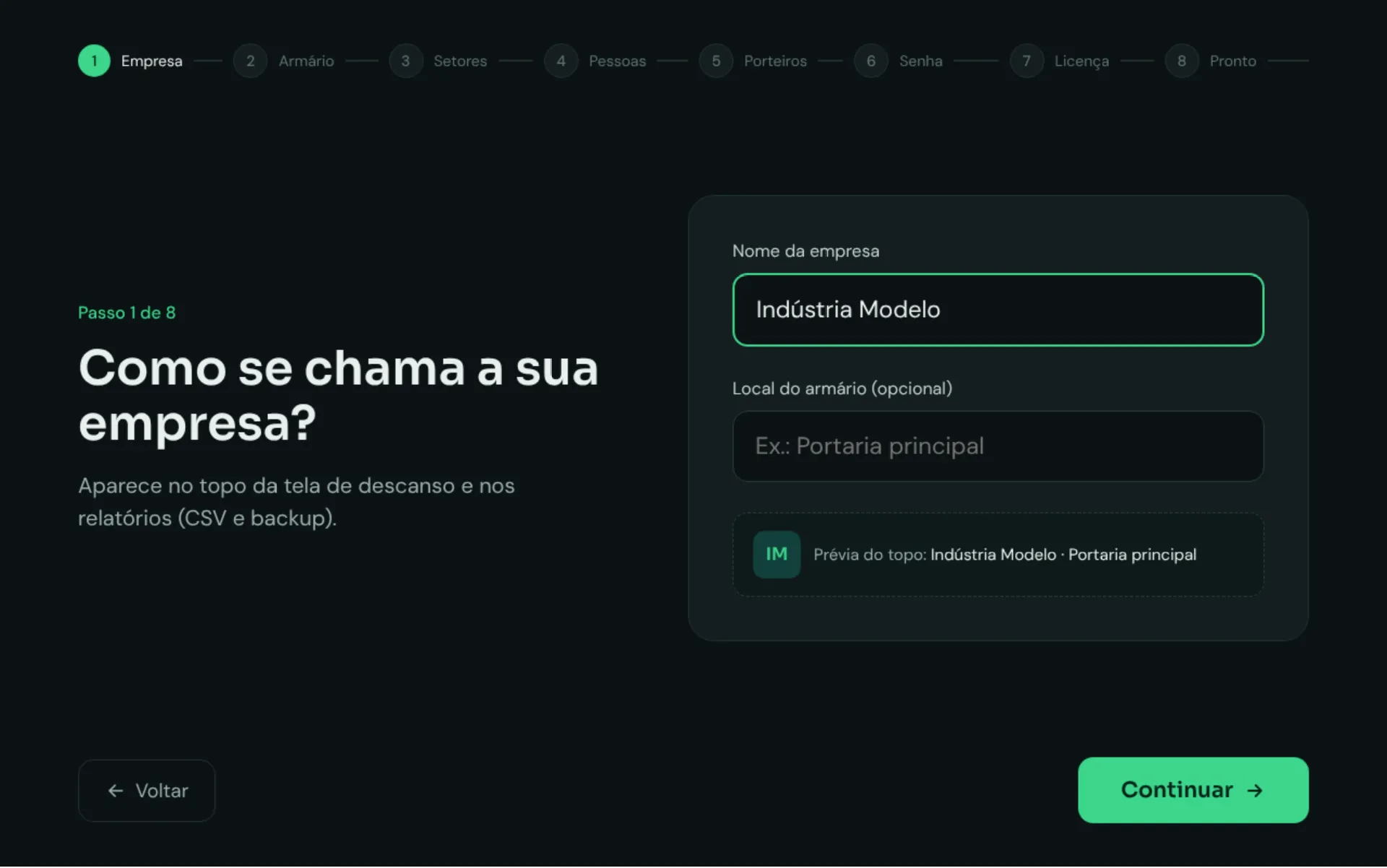
Company step: name and cabinet location
01Company name and cabinet location
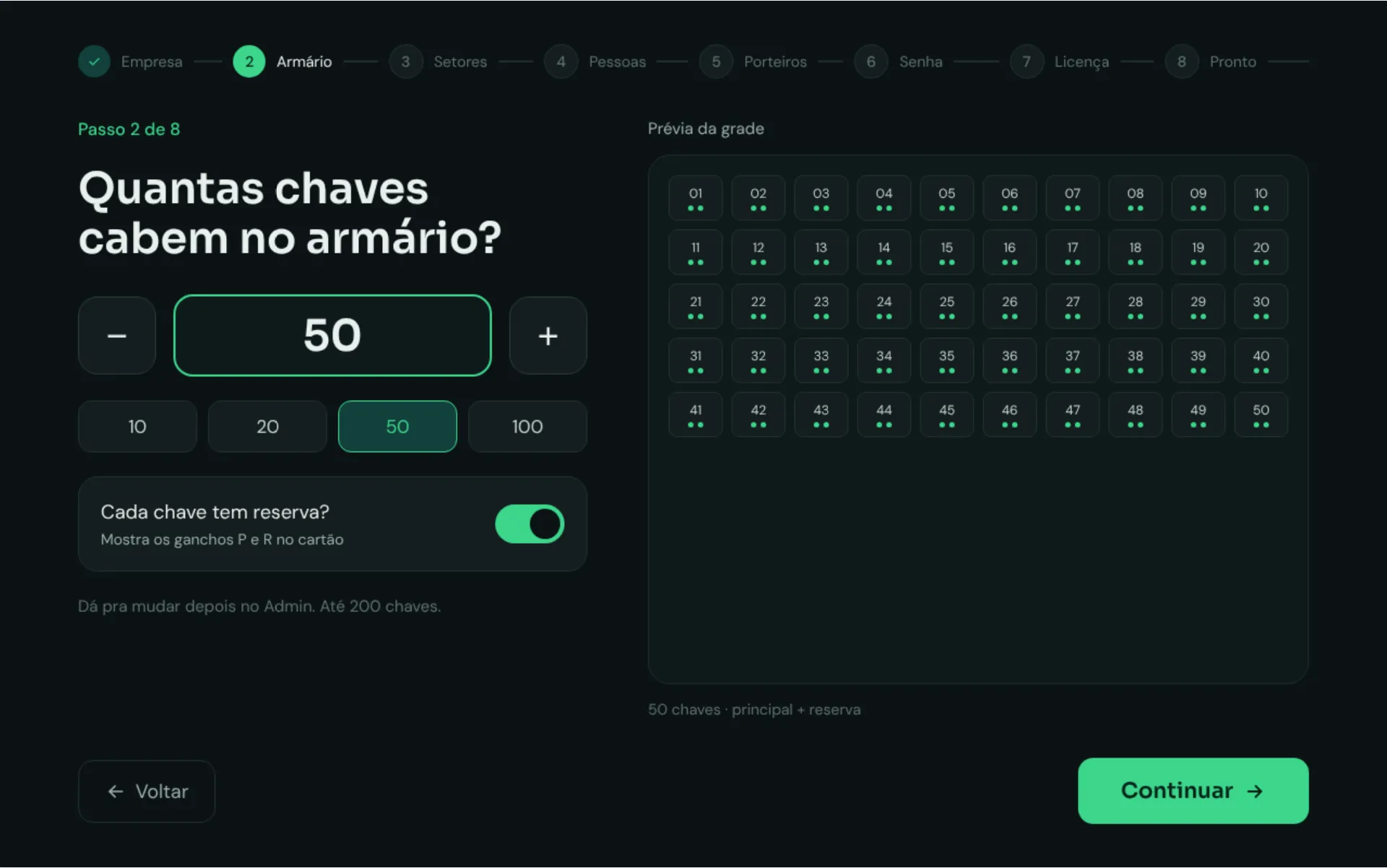
Cabinet step: number of keys and spares
02How many keys, and spares or not
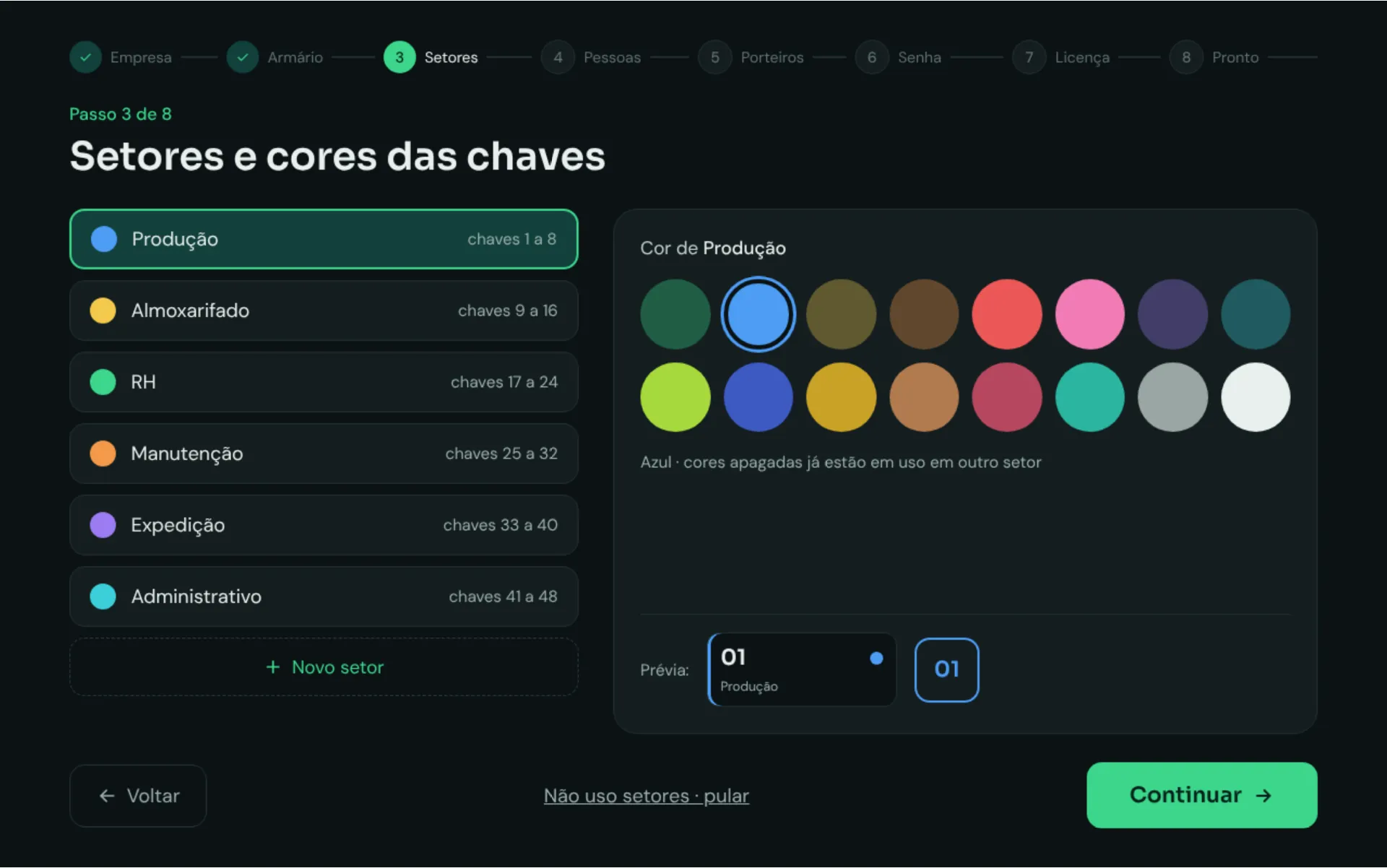
Departments and key colors step
03Departments and colors
Guards and shift times step
04Guards and shift times
Admin password step with recovery code
05Admin password + recovery code
License step: free plan or license key
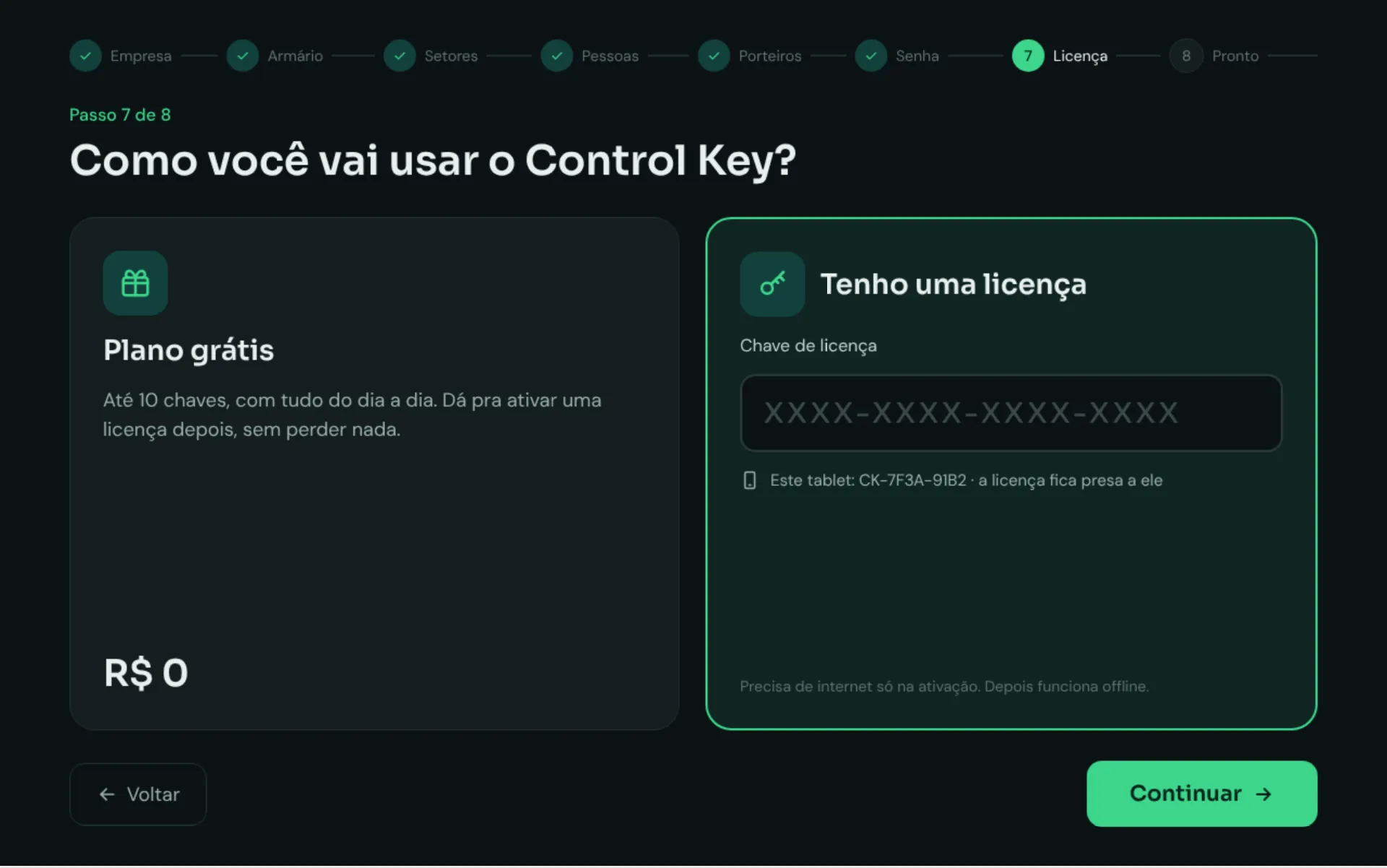
06Free plan or license
All set screen with a tip to pin the app on the tablet
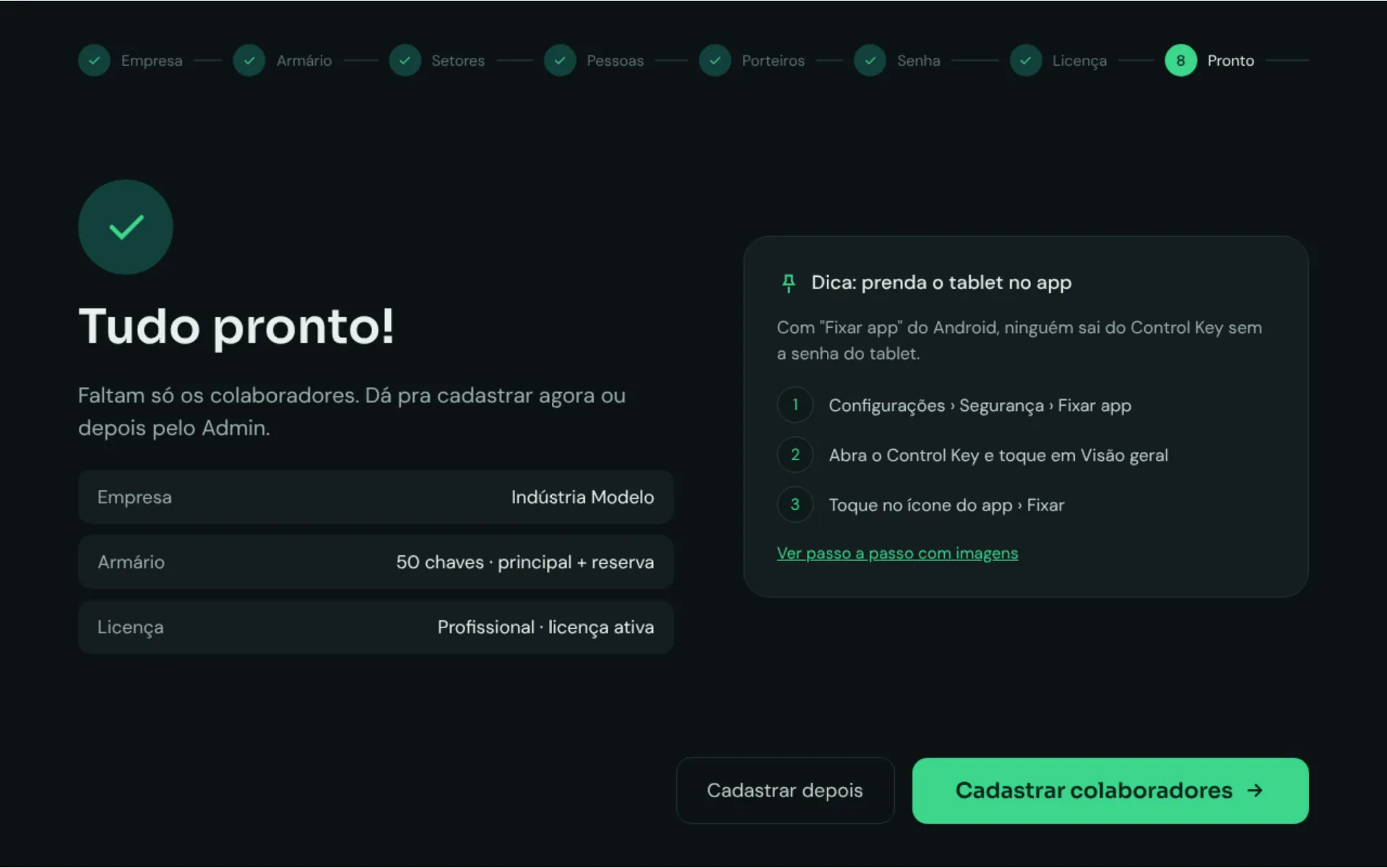
07Done! Plus a tip to pin the app

← scroll sideways · screens in Portuguese →

04 / Plans

Start free. Grow without losing anything.

When your cabinet goes past 10 keys, the app lets you know. Activate a license and pick up right where you left off.

Free

to get started

$0

  • Up to 10 keys
  • All the daily essentials: pickups, returns and history
  • Works offline
  • Activate a license later without losing anything
Start for free →

License

full cabinet

Contact us for pricing

  • Up to 200 keys
  • Guards, departments and PDF reports
  • Your current data stays the same
  • Internet only for activation — offline after that
  • The license is tied to the tablet
Request a license on WhatsApp →
05 / FAQ

Questions about Control Key

Does it need internet?

No. Control Key works offline day to day. The internet is used only once, to activate the license.

What device do I need?

An Android tablet, kept at the front desk or next to the key cabinet.

Can I start for free?

Yes. The free plan covers up to 10 keys. When you add the 11th, the app offers a license — and everything you’ve set up stays the same.

What if I forget the Admin password?

During setup, the app shows a recovery code once. Write it down and you can get in even without the password.

How are the records kept?

Everything stays on the tablet, with automatic backups. You can restore a backup, export to CSV for Excel and generate PDF reports.

Can I stop people from leaving the app?

Yes. With Android’s “App pinning”, nobody leaves Control Key without the tablet’s password. The app walks you through it at the end of setup.

06 / Contact

Want Control Key at your front desk?

Message us on WhatsApp and we’ll help you get started — no strings attached.